Dogear
Keeps a folder on your computer in sync with your reMarkable tablet. Drop a PDF in the folder — it shows up on your tablet about a minute later. Write on it there, and your notes come back into the file on your computer.
Windows will show a blue “Windows protected your PC” warning — that's normal for a small app that isn't from the Microsoft Store. Click More info, then Run anyway.
Using a Mac instead? Download for Mac
It never deletes your files. Delete a document on the tablet and your computer copy stays; delete a file from the folder and the tablet copy stays.
Installing — Windows
- Double-click the downloaded Dogear-setup.exe and, at the blue warning, click More info → Run anyway.
- Click through the installer. No admin password needed.
Installing — Mac
- Open the downloaded Dogear.dmg and drag Dogear into Applications.
- Open it from Applications the first time.
First-time setup
- Dogear opens with a “Pair your reMarkable account” screen. Click Open my.remarkable.com and sign in with your reMarkable account.
- The website shows an 8-character code. Copy it, paste it into Dogear, and click Pair. (Codes work once and expire in a few minutes — if it fails, refresh the page for a fresh code.)
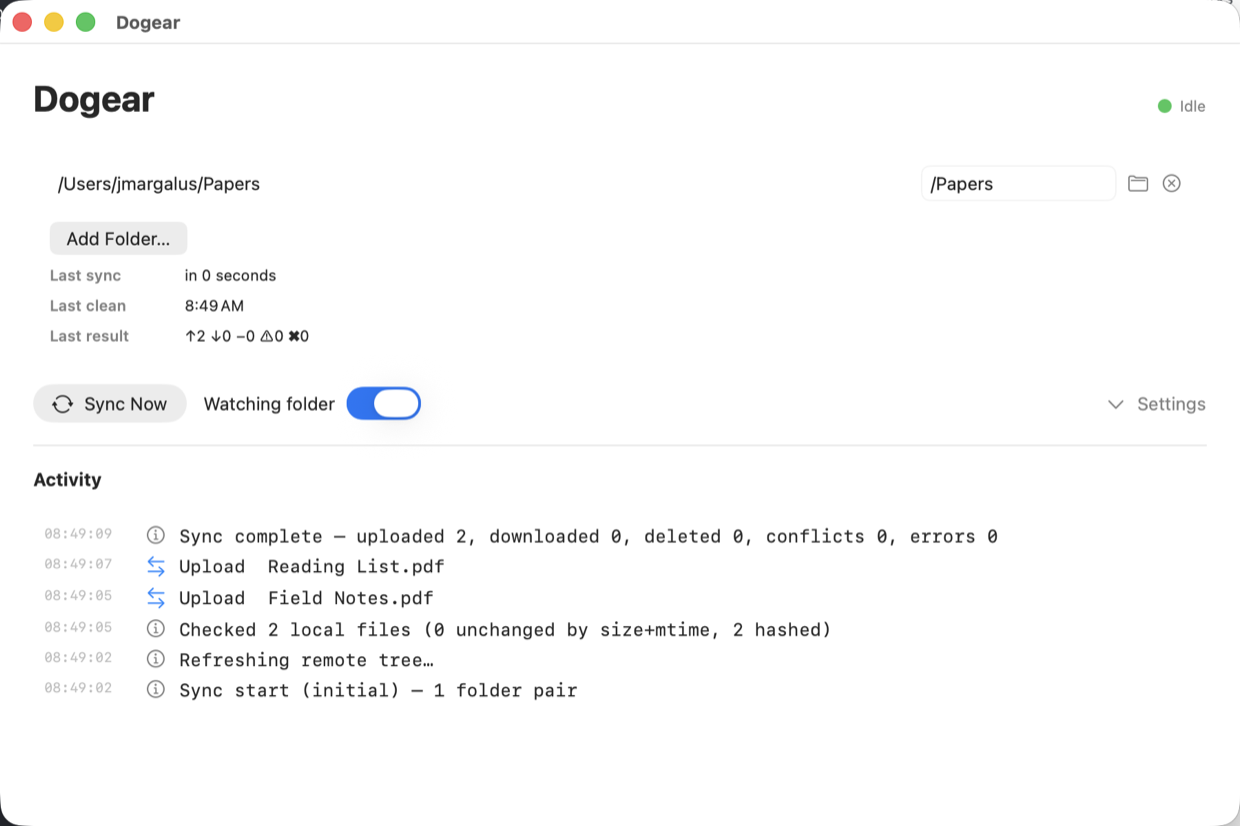
- Click Add Folder… and pick a folder to sync. Start small: one folder with a few PDFs you don't care much about, until you trust it.
Adding another folder later works exactly the same way — open Dogear, click Add Folder…, pick the folder. That's the only step; it starts syncing on its own within a minute.
What syncs
- PDF and EPUB files sync both ways — tablet notes get folded back into the PDF on your computer.
- Word documents (.docx) sync one way: Dogear converts them to PDF and sends the PDF to your tablet. Edit the Word file and the tablet copy updates. (On Windows this needs Microsoft Word or the free LibreOffice installed.)
- Everything else — spreadsheets, photos, whatever else lives in the folder — is simply ignored. The activity log says so, so “nothing happened” is never a mystery.
One setting to know: leave “Mirror deletions” unchecked (it is by default). That's the one switch that changes the never-deletes-your-files rule, and you don't need it.
If something looks wrong
- A red banner in the window means something is failing repeatedly. Nothing is being lost — take a screenshot and email it to Jay.
- If the pairing screen comes back on its own, the connection expired. Get a fresh code from my.remarkable.com and pair again.
- Even better than a screenshot: attach the log file.
Windows:
%LOCALAPPDATA%\Dogear\Logs\sync.log— Mac:~/Library/Logs/Dogear/sync.log. - Anything else: email Jay what the window says — jay@margalus.com.